Steward Quick-Start Guide
A walkthrough of your Steward Panel on a phone — what each part does and how to keep your ring running smoothly on show day.
Getting Into Your Panel
Open the Steward Access page on your phone and enter the Steward Code your organiser gave you. Keep a printed Steward QR code with you in the ring, and store the access code somewhere safe. Each code only opens the ring it belongs to — you can't see or control other rings.
Your Panel at a Glance
Each note sits next to the part of the screen it explains.
Ring Header & Progress
The ring you're running and a gold bar showing classes done vs. total.
Start Class / Finish Class
Green starts the next standby class (also ends a lunch break). Red finishes the class in progress.
Lunch Break
Pauses the ring and shows it live on the public board. Press Start Class to resume.
Announcements
Post a message that broadcasts show-wide to all rings, competitors and announcers.
All Classes
Tap to expand the full class list for your ring, including completed classes.
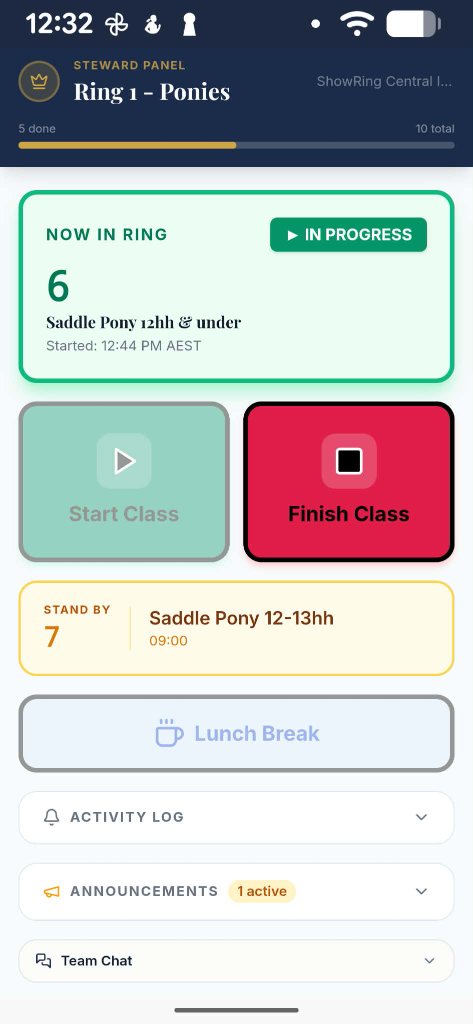
Now in Ring
The class currently underway — number, name and start time.
Stand By
The next class coming up — get that rider ready so the ring keeps moving.
Activity Log
A timestamped feed of every start, finish, break and announcement in your ring.
Team Chat
Private chat with the organiser, other stewards and admin.
Ring Header & Progress
The ring you're running and a gold bar showing classes done vs. total.
Now in Ring
The class currently underway — number, name and start time.
Start Class / Finish Class
Green starts the next standby class (also ends a lunch break). Red finishes the class in progress.
Stand By
The next class coming up — get that rider ready so the ring keeps moving.
Lunch Break
Pauses the ring and shows it live on the public board. Press Start Class to resume.
Activity Log
A timestamped feed of every start, finish, break and announcement in your ring.
Announcements
Post a message that broadcasts show-wide to all rings, competitors and announcers.
Team Chat
Private chat with the organiser, other stewards and admin.
All Classes
Tap to expand the full class list for your ring, including completed classes.
Need a hand? Ask your show organiser or contact the ShowRing Central team. This guide reflects the current steward panel.